
Set up cloud file sharing for your team
Your operations team needs the current price list. The newest copy might be in a colleague’s OneDrive, an email attachment or an office shared drive. Start with one folder people rely on. Smart Tasq can help you decide where it belongs, who should own it and how staff will find it after a move.
Free baseline review with written recommendations
Storage options by work type
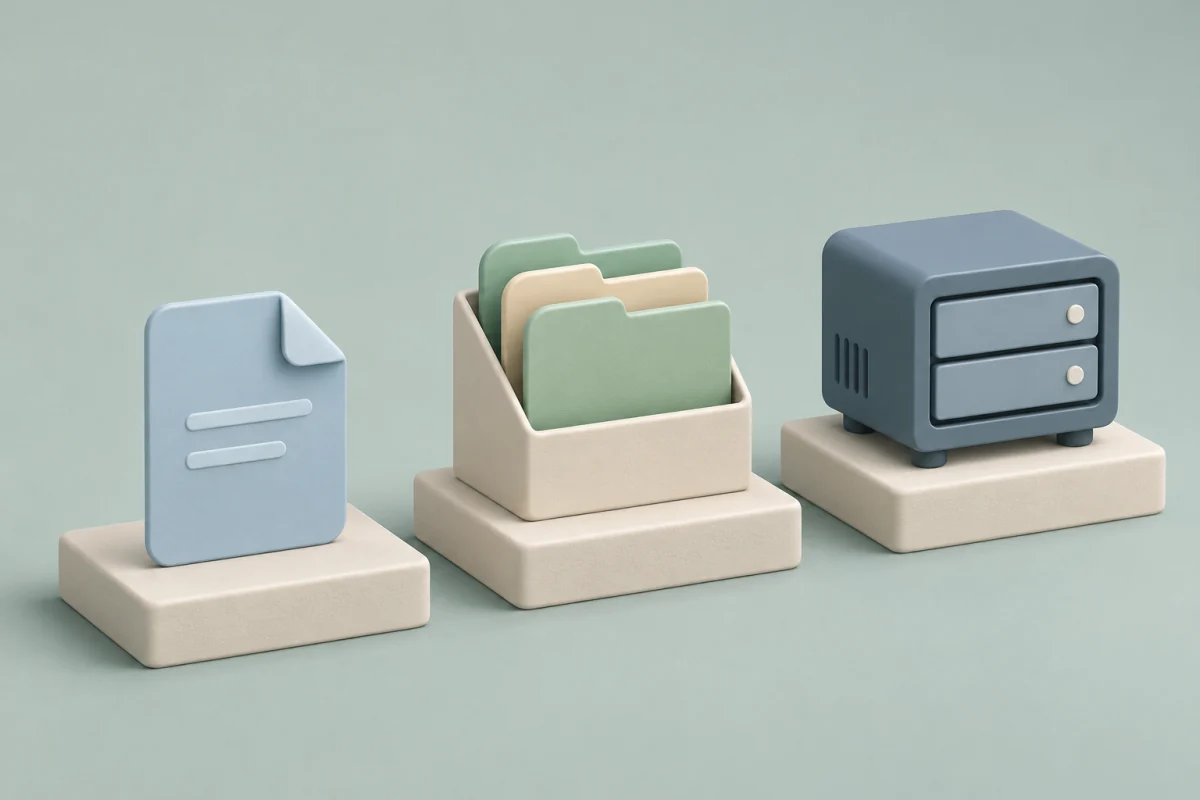
Illustrative mapOne person owns the draft. OneDrive lets them share it while they work.
The price list belongs to purchasing. A SharePoint library keeps it with the team when staff change.
The estimating app expects a network path. Check its requirements before evaluating Azure Files.
Match the storage to the work
Choose by how people or applications use the files.
OneDrive for work
Individual drafts and occasional sharing. Files start private in one person’s work account.
SharePoint team site
Shared libraries support co-authoring, version history and Teams channel files. The library stays with the team when people change roles.
Azure Files
Evaluate this option when a mapped drive or application needs a network path. Check SMB compatibility, how staff connect and how they sign in.
Try one folder before moving the rest
Take a project folder with a real mix of users. Ask its owner to identify who can edit, who needs read access and whether a supplier can see selected documents. Have one colleague open and edit an agreed file from their usual device. Check with a second account that restricted material stays private. Record where staff should go for the current copy and who approves the next access request.
What Smart Tasq covers and what you keep
What Smart Tasq can help with
- Comparing OneDrive, SharePoint team libraries and compatible shared-drive options such as Azure Files
- Planning a pilot folder move, permission structure and external-sharing rules
- Identifying storage options to discuss when scoping a separately quoted move
What your business keeps control of
- Ownership of each folder, naming conventions and who approves edit or external access
- Deciding which legacy paths, software dependencies and retention or backup rules apply
- Testing one real folder with staff before retiring an office shared drive
What about the old drive?
Can we keep familiar folder names?
Bring the folder structure and a few examples of paths that staff or applications use. Keep names that help people find work. Flag links, spreadsheets or scripts that depend on an exact mapped path before choosing a destination.
Does moving files settle backup and recovery?
Version history and recycle bins help with everyday mistakes. Agree separately which copies you need, how far back you might need them and who will check that files can be restored.